
Your check-in card, always at hand
Guests can share or download their personal profile card with its QR code. They can also add their check-in card to Apple Wallet or Google Wallet and bring it up easily on their next visit.
Guest access & check-in
Looking forward to a session should not require a password. Your guests book directly, open their account with a magic link and check in at the center with the QR code from their email.
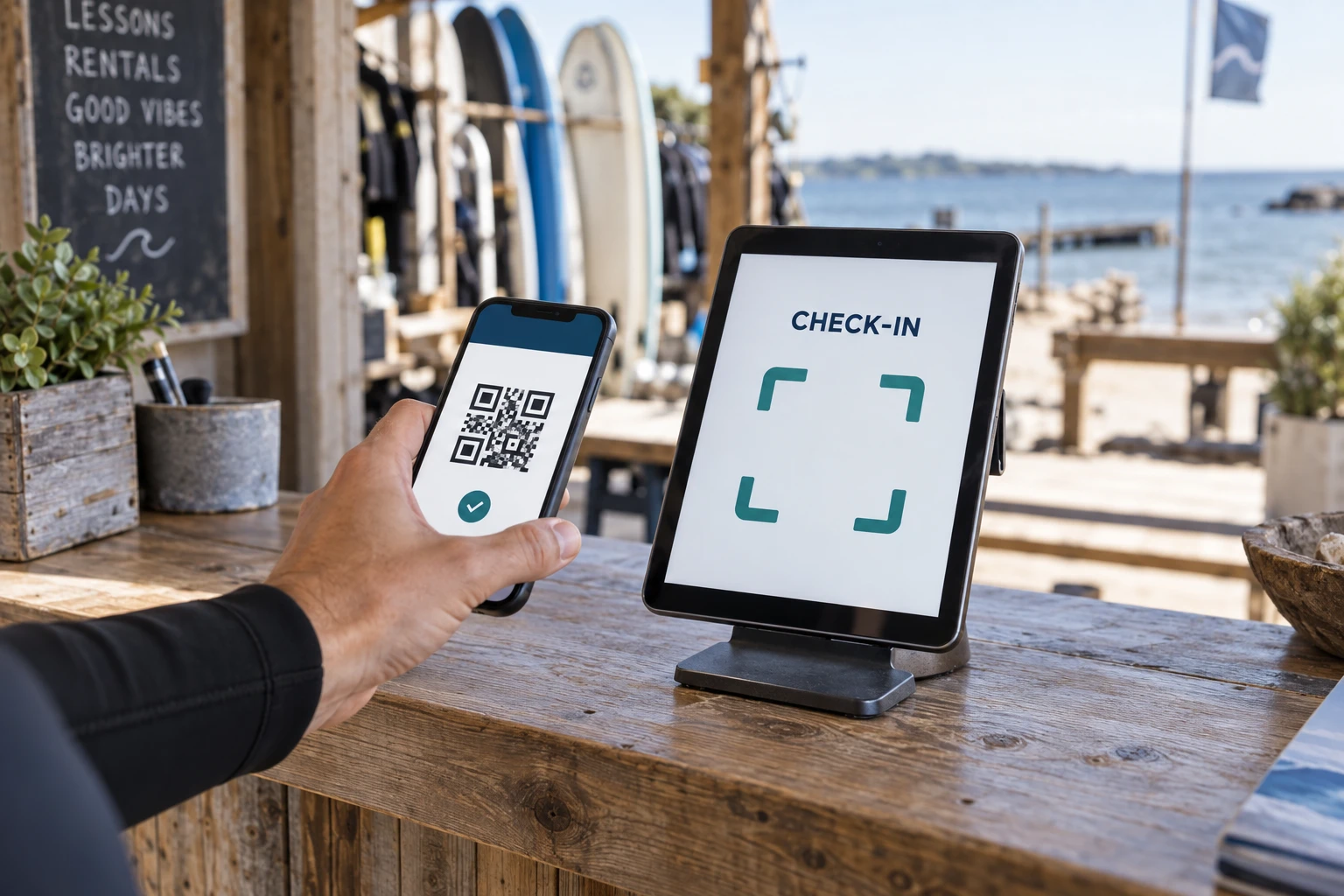
Quick scan
From the first click to the next session: TIDEFORCE connects booking, email and arrival in one simple guest journey. Your school stays the direct point of contact, under its own brand.
Choose a lesson, complete the booking, receive the confirmation. Your guest can look forward to the experience without creating a password first. Explore the journey from checkout to arrival.
Your guest chooses their experience and completes the booking. Creating a password is not part of the process.
No password neededMia · 1 person
The QR code arrives in the booking confirmation email. At the check-in terminal, your guest scans the code and checks themselves in. Access to the booked experience is already at hand when they arrive.
Guests can share or download their personal profile card with its QR code. They can also add their check-in card to Apple Wallet or Google Wallet and bring it up easily on their next visit.
A tablet at reception becomes the check-in terminal. Guests can also review their bookings, check their next schedule and open their shared session reports there.
There is no need to search through the inbox together to find the booking. Your guest brings the right QR code. Your team has more room for questions about the session, the equipment and getting started at the spot.
A personal magic link in the email takes the guest into their account. They can find the information for their stay without entering a password, including after check-in.
Their own bookings stay within reach. Guests can review dates and booking details themselves instead of calling the center for every question.
The next published schedule shows what is coming up. Guest access connects to your school’s day-to-day planning.
Session reports shared by the instructor give the guest access to their feedback and progress again. The session stays with them after the day on the water.
TIDEFORCE creates the customer account in the background. The booking and future history have a place to belong, while the guest continues without an extra registration step.
Booking, viewing bookings, joining a lesson and checking in at the center work without a password chosen by the guest. The magic link and QR code provide the appropriate access paths.
Guests who prefer it can set a password and access their profile through the regular login. The way they access their account remains their choice.
The checkout takes the booking. The Email Studio sends its confirmation. Check-in welcomes the guest at the center; planning and reports accompany their sessions. Your team continues with the same customer history.
We align guest access and terminal setup with your reception and workflows. In the demo, we walk through the journey together, from both your guests’ and your team’s perspective.
No. Guests can book without registering first or setting a password. TIDEFORCE creates the associated customer account in the background to keep bookings and history connected.
The personal magic link from the email opens their account without a password. They can find their bookings, the published schedule and the session reports shared with them.
It is included in the booking confirmation email. The guest scans this code at the center’s configured check-in terminal to check in.
Yes. The check-in card can be added to Apple Wallet or Google Wallet. The personal profile card can also be downloaded or shared through your device.
Yes. They can choose to set a password and use it to log in to their profile. It is not required for booking, participation or the check-in journey described here.
Their bookings, the next published schedule and their shared session reports. The key information is accessible right at the center.
They are two different workflows: guests use the QR code from their booking confirmation to check in. Employees use their employee code at the clock-in terminal to record working hours. Learn more about Time Tracking.
See booking, magic links and QR check-in as one connected journey for your school.

We map your real school day first, then show only where TIDEFORCE actually fits.