Accommodation module

Manage your units. Plan every stay.

Create properties, rooms, camping pitches and storage boxes in Accommodation Management. Then plan their availability and bookings in the Accommodation Scheduler.

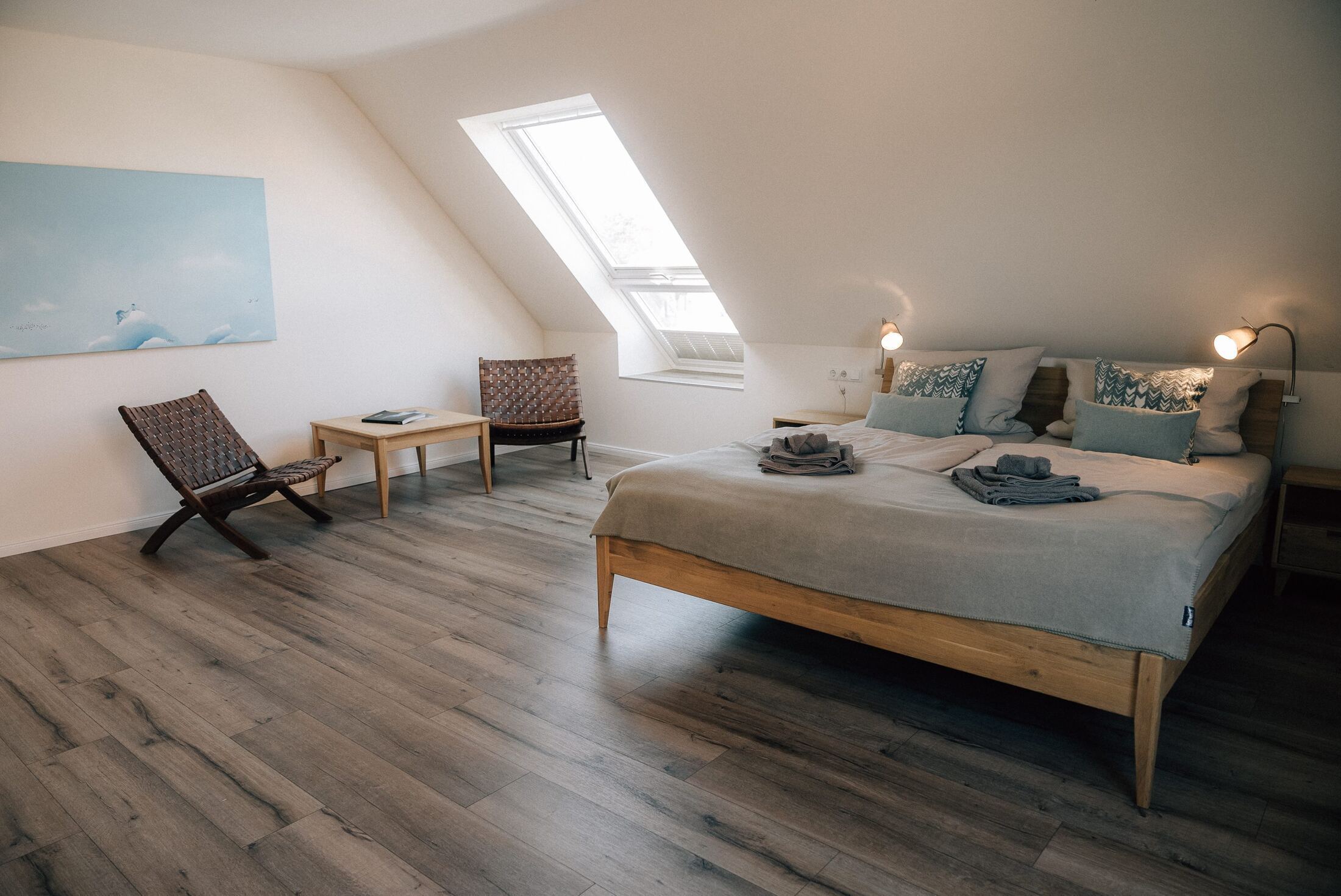
Bright guest room with two beds beneath a skylight

Quick scan

  • Manage accommodation, camping and storage
  • See free dates in the scheduler
  • Create, move and edit bookings

What do you offer: a guesthouse, individual rooms, camping pitches or storage boxes? Create and maintain these units in Accommodation Management. The Accommodation Scheduler then brings their bookings onto a shared timeline.

Create the units. Then plan their occupancy.

Create properties and rooms

Create your properties and organise them into room categories, individual rooms and their beds. Photos and descriptions make the differences between your options clear. Your team works with a shared structure for each location.

Capacity and prices at a glance

See capacity, private or shared occupancy and the base price per night for each unit. Occupancy-based rates show how the room price changes with the number of guests.

Manage camping pitches and storage boxes

The same management area covers camping grounds and pitches, as well as storage boxes and lockers. Create the relevant areas and units, then maintain them at their location.

Move from management to the scheduler

Your configured units form the basis for occupancy planning. Open the Accommodation Scheduler to spot free dates, create bookings or adjust existing stays.

All your accommodation. One occupancy plan.

From the property to each bed

Expand a property to see its rooms. For rooms with multiple beds, expand the individual beds and view their bookings. Keep track of which guest occupies which space.

See stays in context

Booking bars show arrival, departure and the time in between. Scroll through the months to see free dates, consecutive stays and longer bookings in context. Reservations and blocks for cleaning, maintenance or private use appear in the same plan.

Create bookings directly in the calendar.

Select a free period

Click a free cell or drag across the dates in a room, bed, pitch or storage-box row. Open the appropriate booking from that selection.

Book or block

Complete the booking details and check the dates. If a unit needs to be unavailable for a while, create a block from the schedule instead.

When a stay changes.

Move booking bars

Drag an editable booking to another period or a suitable unit. Use the edges of the bar to adjust the length of stay. Your team reviews and confirms the proposed change before it is applied.

Open details with a click

Open an existing booking directly from the scheduler. The guest, booked unit and dates remain connected to the record as you edit the booking.

Bring rooms, camping and storage together.

Include your camping pitches

Expand a camping area to see its pitches, bookings and blocks. Create bookings from a timeline selection and open existing stays for editing.

Allocate storage boxes and lockers

Storage boxes and lockers have their own rows and booking periods. Your team can see which unit is free, booked or blocked.

Guests can combine accommodation and activities in the same checkout. The scheduler supports the occupancy planning behind it. For boards, kites and other rental equipment, use the Resource Planner.

Frequently asked questions

01

Where do I create properties, camping pitches and storage boxes?

+

Use Accommodation Management to maintain locations, properties and rooms, camping areas and storage units. Then plan their bookings and availability in the Accommodation Scheduler.

02

Can I plan individual beds?

+

Yes. The overview groups properties into rooms and expands rooms with multiple beds into individual bed rows. Bookings are assigned to their corresponding rows.

03

Does the scheduler also cover camping and storage boxes?

+

Yes. Alongside rooms and beds, it covers camping pitches and storage boxes or lockers managed as locker units. You can view occupancy, create bookings and block dates.

04

Can every booking be moved freely?

+

Available actions depend on the booking type, status and your team’s permissions. For editable stays, you review and confirm the proposed change before it is applied.

05

Does the scheduler sync with Booking.com or Airbnb?

+

The planning described here manages units maintained in TIDEFORCE. Automatic synchronisation with Booking.com, Airbnb or other booking portals is not part of these scheduler features.

Next step

Plan the stay as clearly as the lesson day.

We’ll show you how to create your properties, rooms, camping pitches and storage boxes, then plan their occupancy in the scheduler.

See accommodation planning →Explore the platform
Kilian Kirchberger, Founder and CEO of TIDEFORCE
We map your real school day first, then show only where TIDEFORCE actually fits.
Kilian KirchbergerFounder & CEO